Select the existing app.
- 01.1
Open Slack API → Your Apps.
Sign in at api.slack.com/apps ↗.
- 01.2
Select the app and workspace.
Open the app that should run Email Reminder. Confirm the workspace before changing its manifest.
Apply the recipe manifest.
The name and description are already set for Email Reminder.
- 02.1
Open Features → App Manifest.
Choose App Manifest and select the JSON tab.
- 02.2
Back up the current manifest.
Copy the existing JSON to a secure working document before changing it so workspace-specific settings can be preserved or restored.
- 02.3
Replace or merge the configuration.
Copy the manifest below. Merge it when the existing app has settings your team still needs.
- 02.4
Save the manifest.
Review Slack's change summary, then click Save Changes.
{
  "display_information": {
    "name": "AgentBarn_Email_Reminder",
    "description": "Monitors a mailbox, flags action-required messages, and posts priority pings to Slack.",
    "background_color": "#CC4400"
  },
  "features": {
    "app_home": {
      "home_tab_enabled": false,
      "messages_tab_enabled": true,
      "messages_tab_read_only_enabled": false
    },
    "bot_user": {
      "display_name": "AgentBarn_Email_Reminder",
      "always_online": true
    }
  },
  "oauth_config": {
    "scopes": {
      "bot": [
        "app_mentions:read",
        "canvases:read",
        "canvases:write",
        "channels:history",
        "channels:join",
        "channels:read",
        "chat:write",
        "chat:write.customize",
        "chat:write.public",
        "emoji:read",
        "files:read",
        "files:write",
        "groups:history",
        "groups:read",
        "im:history",
        "im:read",
        "im:write",
        "mpim:history",
        "mpim:read",
        "mpim:write",
        "pins:read",
        "pins:write",
        "reactions:read",
        "reactions:write",
        "search:read.users",
        "users:read",
        "users:read.email"
      ]
    },
    "pkce_enabled": false
  },
  "settings": {
    "event_subscriptions": {
      "bot_events": [
        "app_mention",
        "channel_rename",
        "member_joined_channel",
        "member_left_channel",
        "message.channels",
        "message.groups",
        "message.im",
        "message.mpim",
        "pin_added",
        "pin_removed",
        "reaction_added",
        "reaction_removed"
      ]
    },
    "interactivity": {
      "is_enabled": true
    },
    "org_deploy_enabled": false,
    "socket_mode_enabled": true,
    "token_rotation_enabled": false,
    "is_mcp_enabled": false
  }
}Create the app-level token.
- 03.1
Open Basic Information → App-Level Tokens.
Click Generate Token and Scopes.
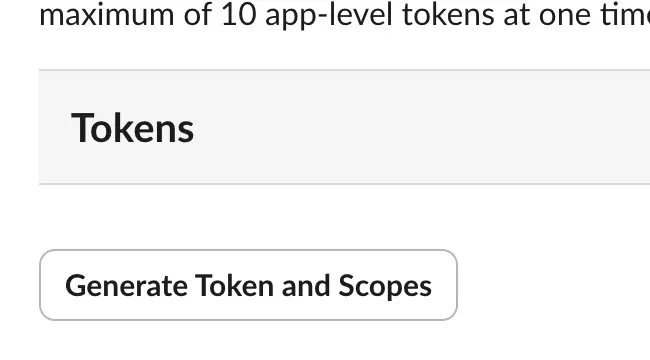
Generate Token and Scopes. - 03.2
Name the token and add the scope.
Use
AgentBarn_Email_Reminder, addconnections:write, and click Generate.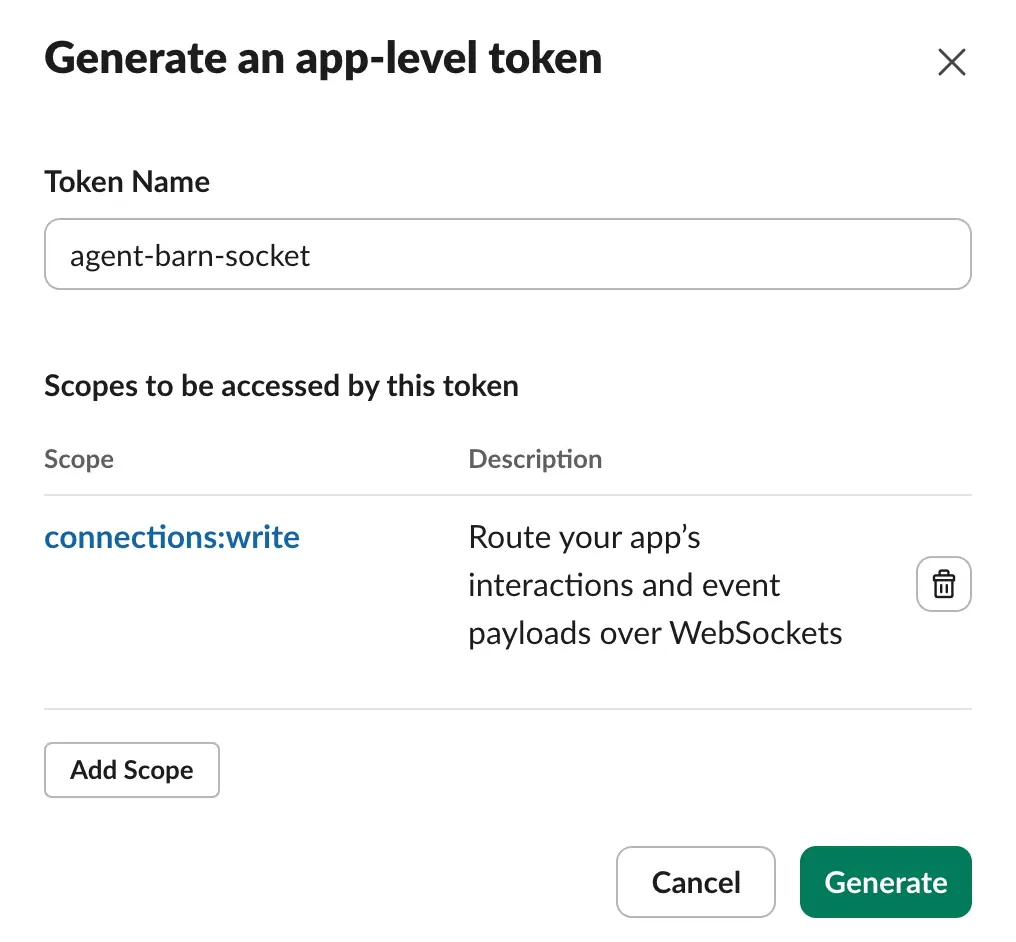
Name → connections:write → Generate. - 03.3
Copy the
xapp-value.Keep it ready for the Agent Barn App-level token field.
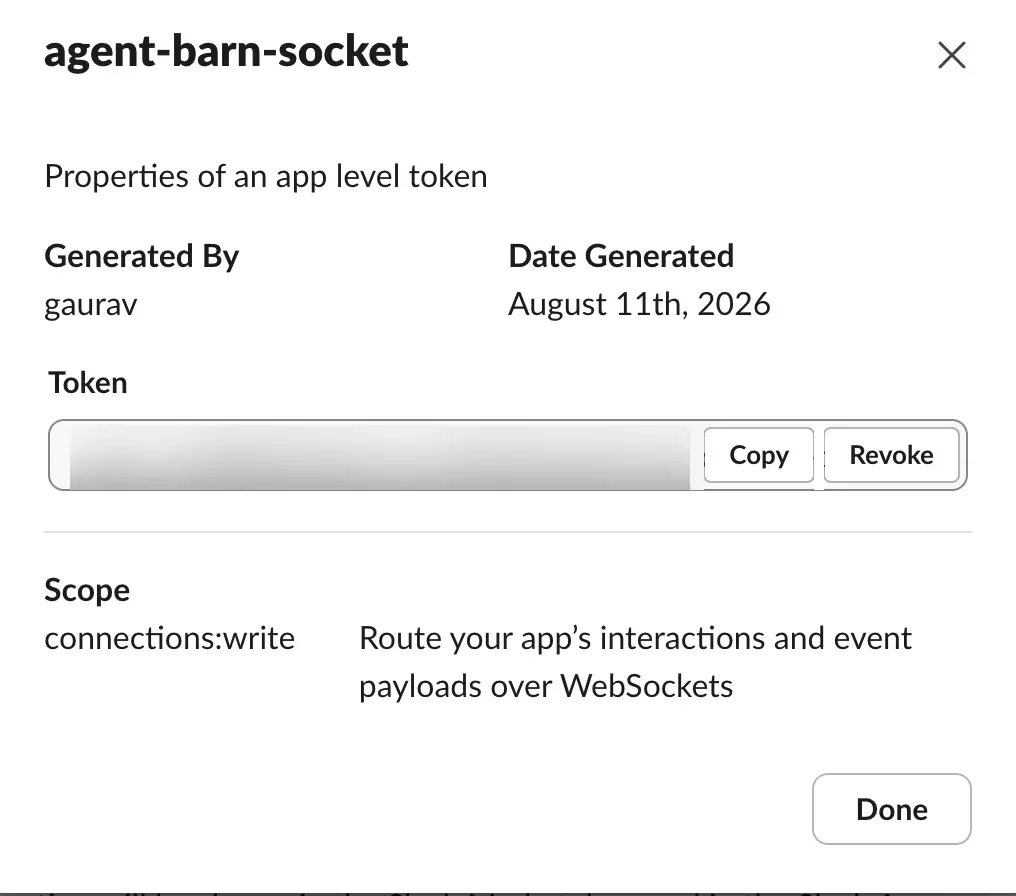
The value is blurred; use Copy.
Install the app and copy the bot token.
- 04.1
Open Install App.
Click Install to [your workspace].
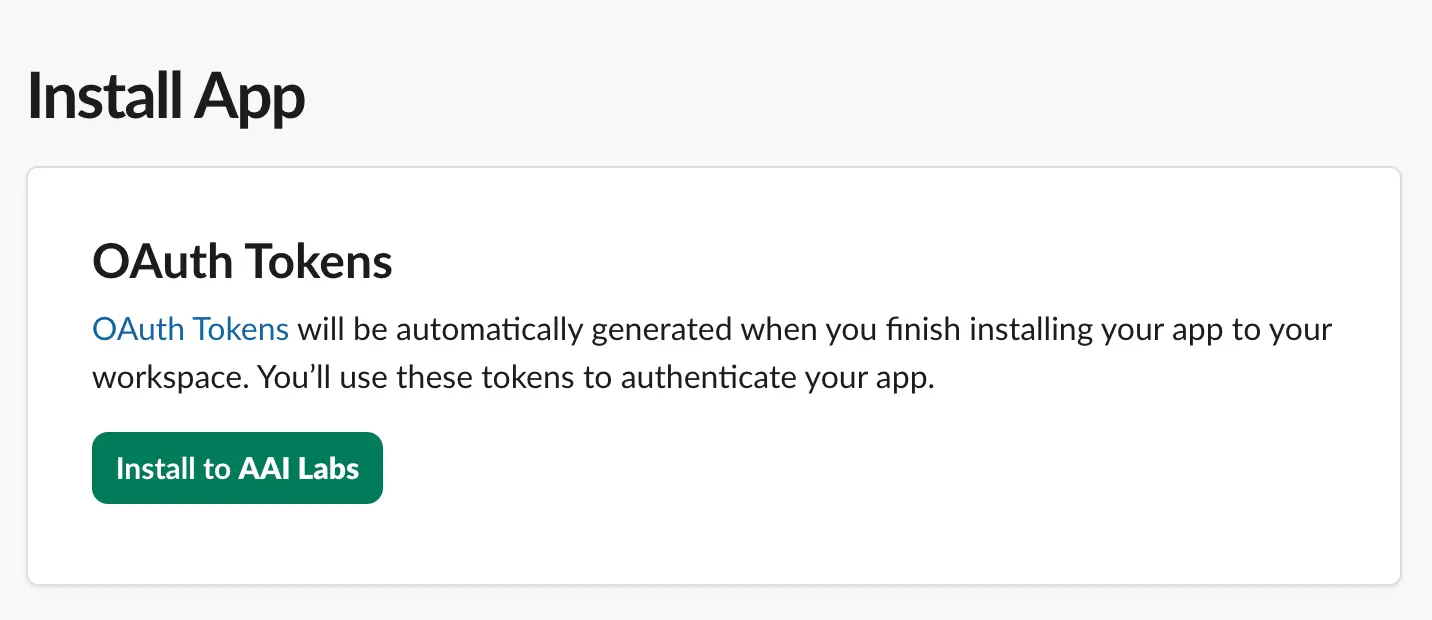
Install App → Install to workspace. - 04.2
Review the workspace and permissions.
Confirm the workspace, review the requested access, and choose Allow.
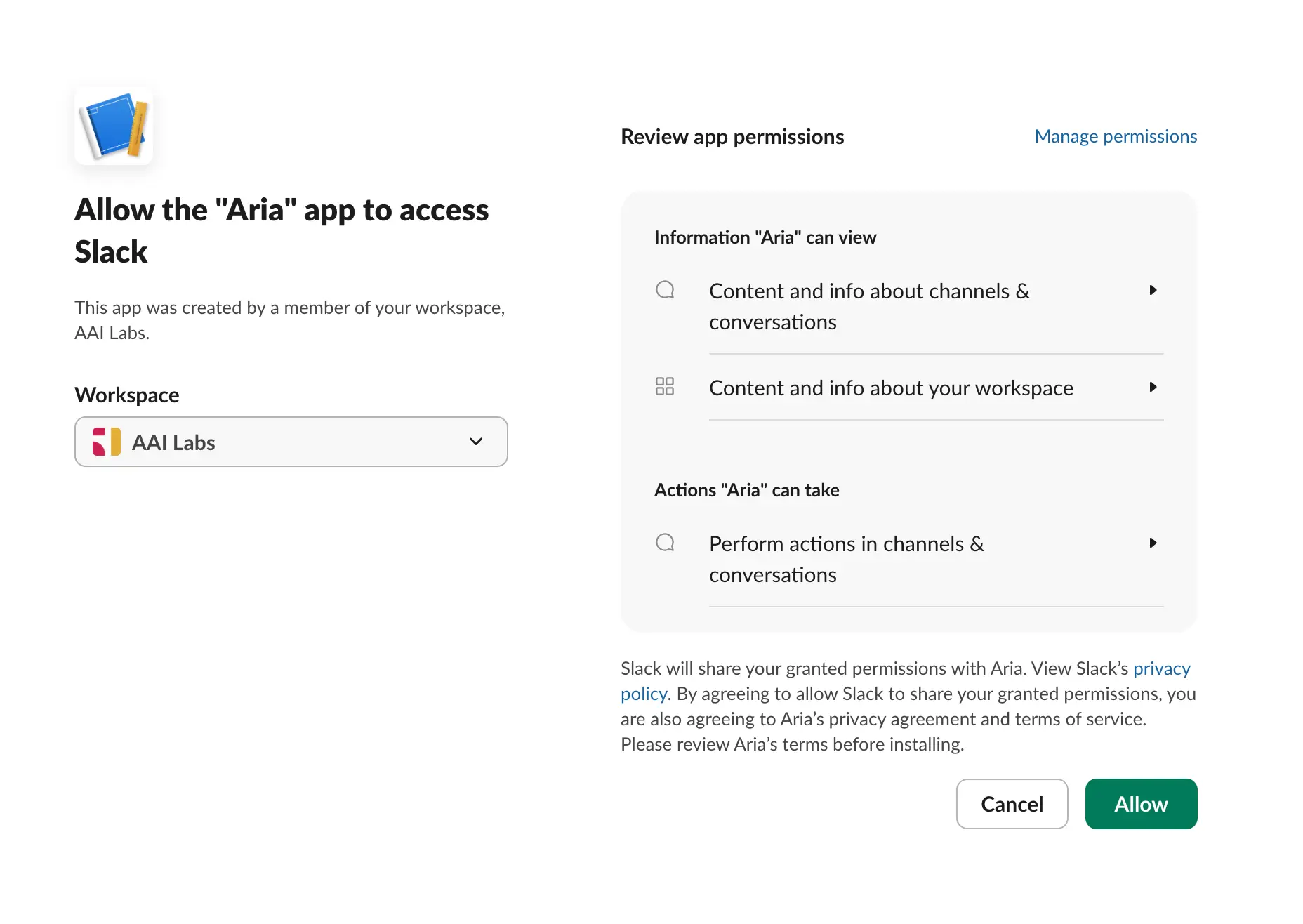
Confirm workspace → review access → Allow. - 04.3
Copy the Bot User OAuth Token.
In Installed App Settings → OAuth Tokens, copy the
xoxb-value.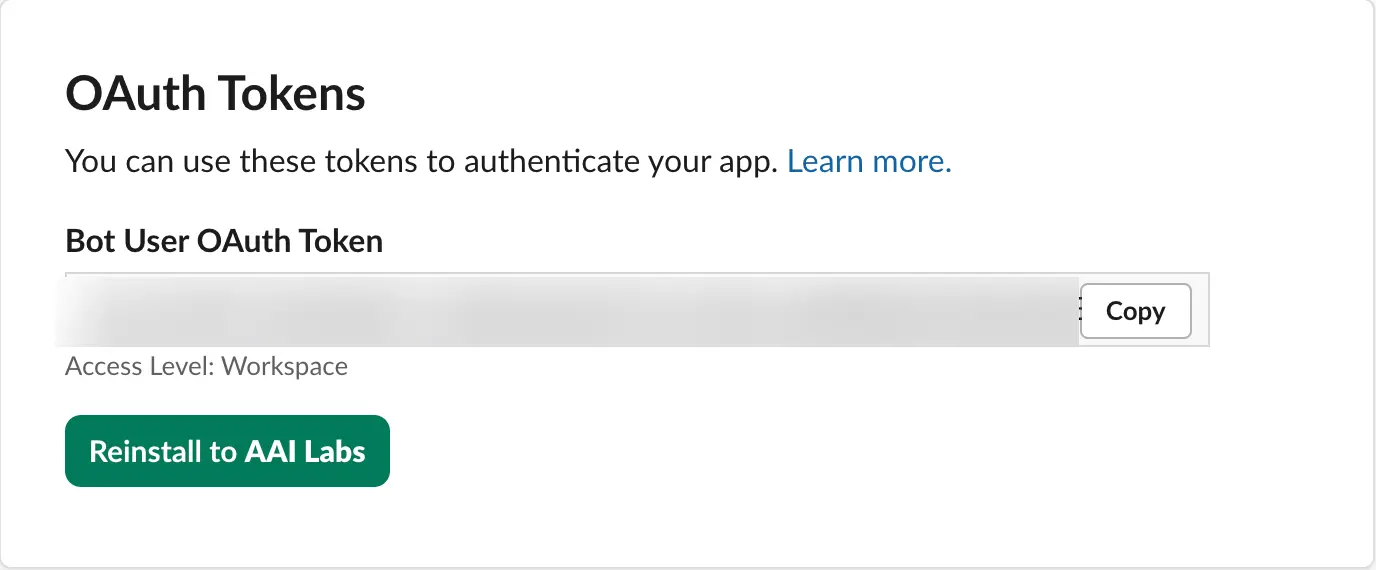
Bot User OAuth Token → Copy.
Connect both Slack values.
xapp-…Paste the value from App-Level Tokens.
xoxb-…Paste the Bot User OAuth Token.
- 05.1
Enter the values in their matching fields.
Paste the complete
xapp-andxoxb-values, then save. - 05.2
Confirm the connected app.
Check that Agent Barn resolves the expected Slack app and workspace.
Configure the agent.
- 06.1
Name the agent.
Use
AgentBarn_Email, or another role-specific name your team will recognize. - 06.2
Select and test the model.
Choose an available model, then run one representative Email Reminder task before connecting broader access.
- 06.3
Choose command approval.

Auto · Manual · Off Auto Runs low-risk commands automatically.
Manual Asks before every command.
Off Runs without approval prompts.
- 06.4
Choose response detail.

Verbose · Concise Verbose Shows progress while working.
Concise Returns the result without step narration.
- 06.5
Configure the recipe trigger and workflow.
Trigger: A new message meets the configured mailbox and priority rules.
- 06.6
Apply the recipe requirements and review rule.
TemplatePriority rules, reminder tone, and escalation instructions.
OAuthRead-only Gmail access approved through Google sign-in.
ChannelsAllowed Slack channels or direct-message policies.
Set Slack access rules.
- 07.1
Choose channel access.

Allowlist · Open Allowlist Respond only in channels you add.
Open Respond in any channel the app can reach.
- 07.2
Choose direct-message access.

Off · Allowlist · Open Off Ignore direct messages.
Allowlist Reply only to approved people.
Open Reply to anyone who can reach the app.
- 07.3
Add and test the intended destinations.
Invite the Slack app to each allowed channel, add the same channels or people in Agent Barn, and send one test request.
Connect the skills for Email Reminder.
Gmail
Read messages that match the configured mailbox and priority rules.
- Credential
- Google OAuth sign-in with gmail.readonly; no manual key is needed.
- Permissions
- Gmail OAuth: gmail.readonly · Modify, send, delete, contacts, and calendar: not requested
- Select Authenticate with Google and approve read-only Gmail access.
- Use a custom Google OAuth client only when the workspace requires its own application.
- Test with representative P1/P2 messages before enabling continuous monitoring.
- 08.1
Select only this recipe’s integrations.
Keep required skills. Where a card says “choose one,” connect the provider that owns the relevant data.
- 08.M1
Gmail // Authenticate with Google.
Click Authenticate with Google, choose the mailbox, review the consent screen, and approve
gmail.readonly.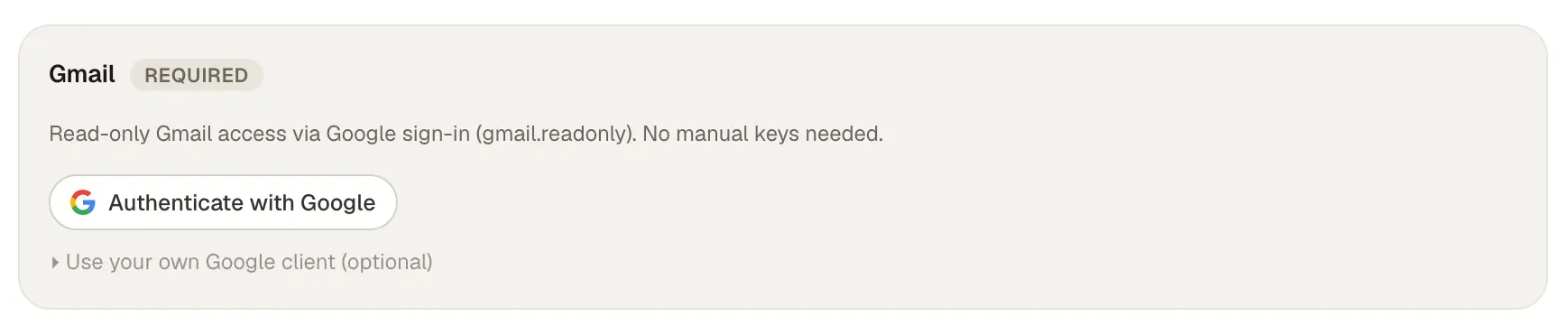
Google OAuth · gmail.readonly - 08.M2
Gmail // Keep access read-only and set filters.
Do not grant send, modify, or delete access. Configure the folders, labels, senders, recipients, and priority rules this recipe may monitor; use a custom Google OAuth client only when the workspace requires one.
- 08.M3
Gmail // Validate both sides of the filter.
Confirm one qualifying message creates a reminder and one excluded message does not appear in the agent's results.
- 08.Z
Test every selected integration.
Run one expected action for each skill and confirm resources outside the selected boundary remain unavailable.
Verify the complete recipe.
- The existing Slack app connects with both Slack values.
- The app responds in an allowed channel.
- A destination outside the selected access rule receives no response.
- Each required integration completes one representative task.
- The command-approval and response-detail choices behave as selected.
- The configured trigger runs: A new message meets the configured mailbox and priority rules.
- The result follows Watch inbox → Assess priority → Prepare ping → Follow up.
- The review rule is applied: Use explicit mailbox filters and escalation rules; do not give an agent unrestricted access to sensitive mail.
Email Reminder is ready for a controlled pilot.
Start with a narrow audience and reversible work, then widen access after observing representative tasks.
Return to recipes →