Create the Telegram bot.
Use Telegram's verified BotFather account. The display name is editable later; the username is the permanent public handle.
- 01.1
Open the verified @BotFather account.
Open t.me/BotFather ↗, confirm the verification badge, and send
/start.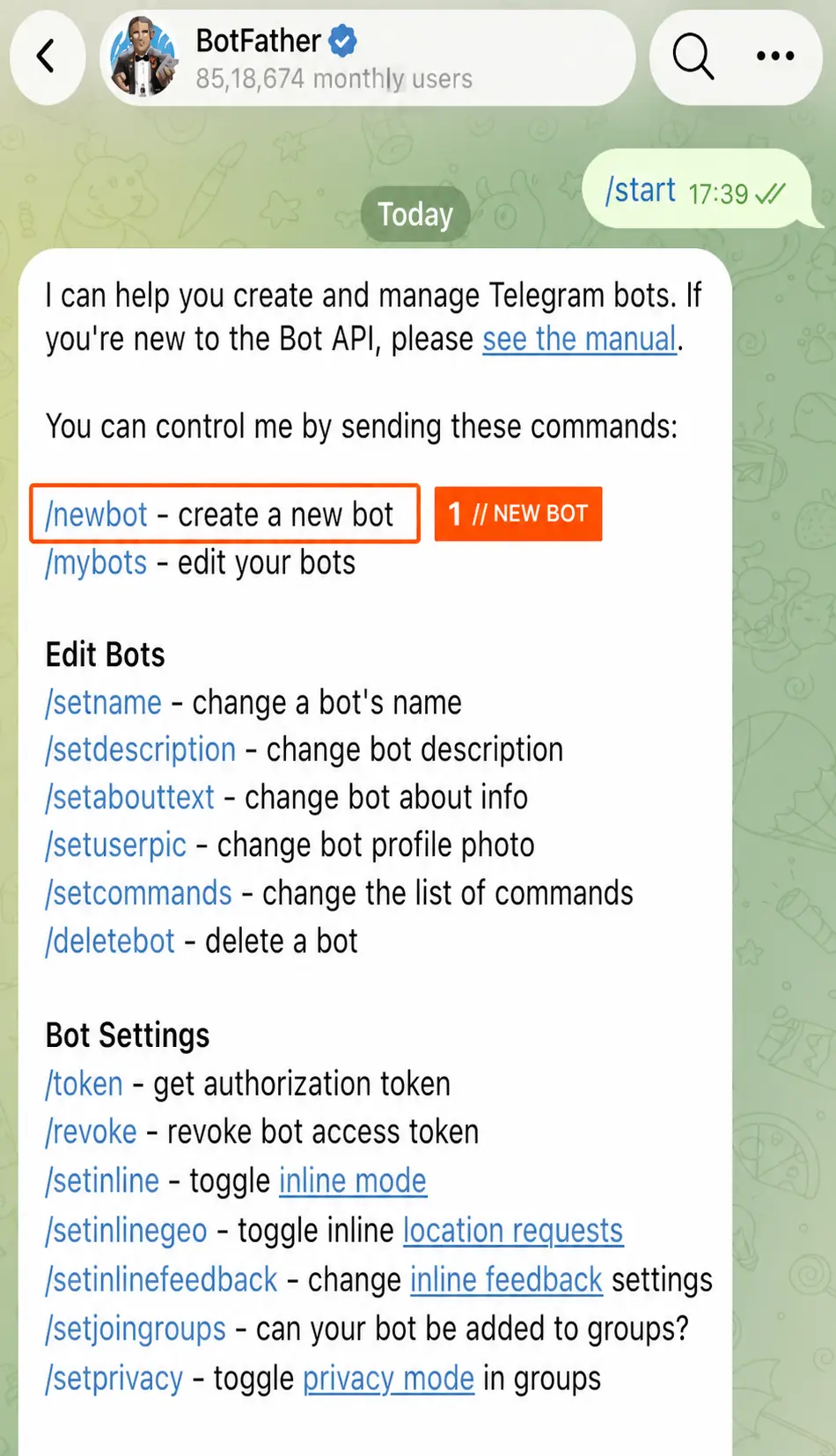
Send /newbotto begin. - 01.2
Send
/newbotand choose the identity.DISPLAY NAMEDocumentation Agent
USERNAMEAgentBarnDocumentationBotThe username must be 5–32 characters, use Latin letters, numbers, or underscores, and end in
bot. Choose it carefully because BotFather does not let you change it later. - 01.3
Copy the generated token.
BotFather returns the bot link and an HTTP API token. Copy it for the next step. The token is fully blurred in this reference.
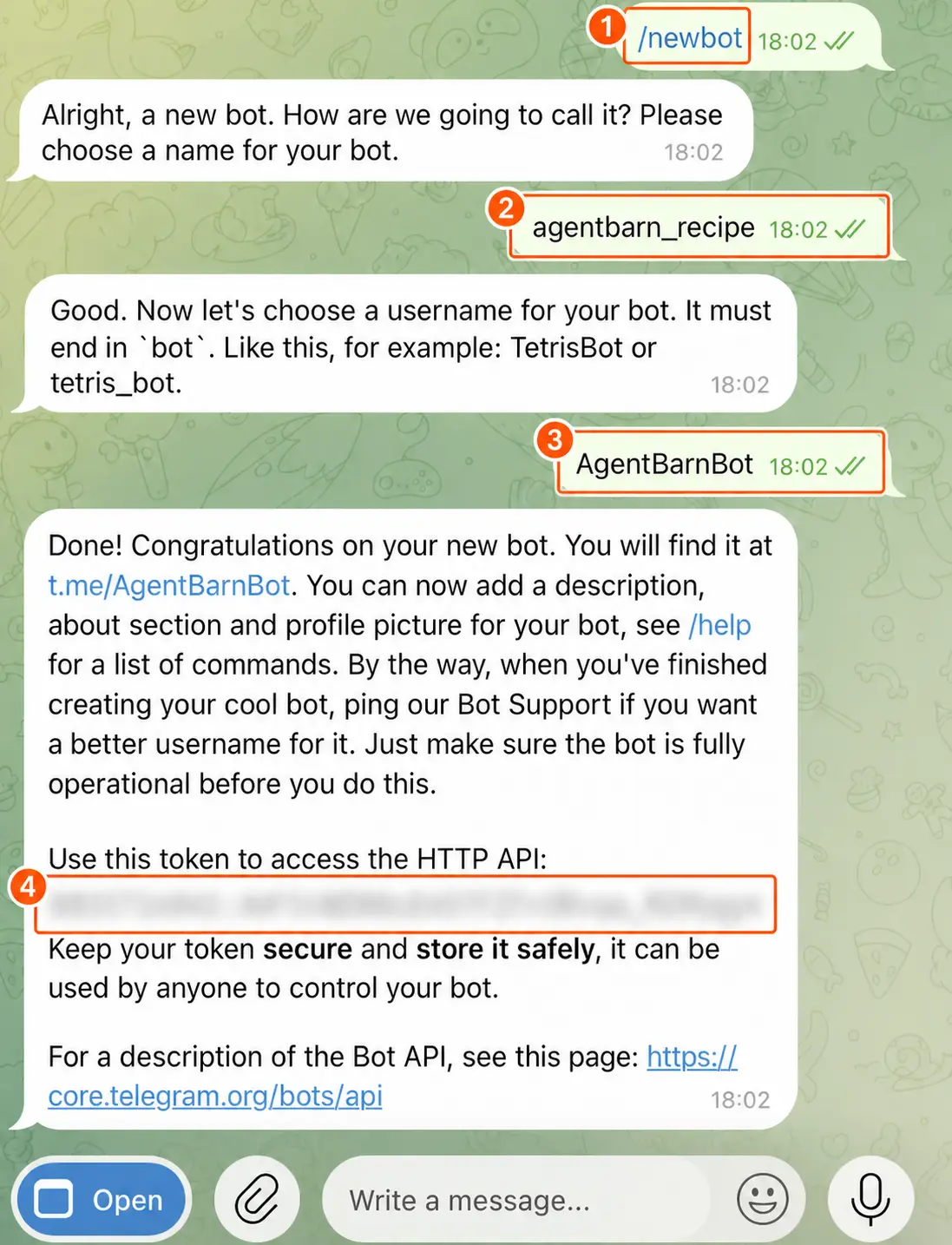
1 // Start creation. 2 // Display name. 3 // Username ending in bot. 4 // Copy the token. - 01.4
Add the bot description.
In BotFather, set the description or about text to the recipe summary below so users know what the bot does before they start it.
SUGGESTEDTurns merged pull requests and linked Jira work into Confluence updates, changelog entries, and a weekly digest.
Connect the bot token.
Enter the token from BotFather in the Telegram credential.
- 02.1
Open the Telegram bot-token credential.
Choose the Telegram integration for Documentation Agent, then select its Bot token field.
- 02.2
Paste the bot token.
A Telegram token resembles
123456:ABC-DEF…. Paste the complete value into the Bot token field.SOURCE@BotFatherFIELDBot tokenACTIONPaste and save - 02.3
Save and verify the bot identity.
Agent Barn should resolve the bot username returned by Telegram. Stop if the resolved username differs from
@AgentBarnDocumentationBotor the bot you selected in BotFather.
Configure the Telegram agent.
Set the identity, model, approval behavior, and response style before connecting external skills.
- 03.1IDENTITY
Name the teammate.
OPERATIONAL NAME AgentBarn_Recipe
Shown in Agent Barn.
HUMAN NAME Aria
Easy to recognize in conversation.
- 03.2MODEL
Select the model.
Use the model available for this agent and test it with a representative task from Documentation Agent.
- 03.3COMMAND APPROVAL
Choose when commands need confirmation.

Available command approval options. START HERE Auto
Runs low-risk commands automatically.
CONFIRM EACH COMMAND Manual
Asks before every command.
NO PROMPTS Off
Runs without approval prompts.
- 03.4VERBOSITY
Choose the response detail.

Available response-detail options. SHOW EACH STEP Verbose
Explains progress while working.
FINAL ANSWER Concise
Returns the result without step narration.
- 03.5
Configure the recipe trigger and workflow.
Trigger: A pull request is merged or a scheduled digest is due.
- 03.6
Apply the recipe requirements and review rule.
TemplateDocumentation agent instructions and output format.
SkillsGitHub or Bitbucket plus Jira and Confluence access.
ChannelsA permitted Slack channel for digests and questions.
Choose where the agent can respond.
Set Telegram delivery and Agent Barn chat rules together.
- 04.1
Start private chats.
Each user opens
t.me/AgentBarnDocumentationBotand presses Start. Telegram bots cannot initiate a private conversation, so every permitted user must do this first. - 04.2
Choose the channel-access rule.

Choose Allowlist or Open. SELECTED CHATS Allowlist
Respond only in chats you add.
ALL REACHABLE CHATS Open
Respond anywhere the bot is present.
- 04.3
Choose the direct-message rule.

Choose Off, Allowlist, or Open. NO PRIVATE CHATS Off
Ignore direct messages.
SELECTED PEOPLE Allowlist
Reply only to approved users.
ANY USER Open
Reply to anyone who starts the bot.
- 04.4
Choose Group Privacy in BotFather.
COMMANDS AND REPLIES Keep enabled
Best when users address the bot directly.
EVERY GROUP MESSAGE Turn off
Use only when the recipe must read the full group conversation.
To change it, open /mybots → select the bot → Bot Settings → Group Privacy. Add the bot to the group again after changing this setting.
- 04.5
Add the intended chats.
Add the bot to each permitted group, then add every permitted user or group to the Agent Barn allowlist when Allowlist is selected. Grant group administrator access only when the configured workflow requires messages that Group Privacy would otherwise hide.
Connect the skills for Documentation Agent.
This section is generated from the integrations required by the selected recipe.
GitHub or Bitbucket
Read merged pull requests, diffs, labels, and linked engineering context.
- Credential
- A GitHub App or Bitbucket access token scoped to the repositories this recipe documents.
- Access
- Repository metadata: read · Pull requests and diffs: read · Comments: write only if the workflow posts review notes
- Choose the provider that owns the source repositories.
- Limit installation or token access to the repositories in scope.
- Subscribe only to merged pull-request events and any explicitly required update events.
Jira and Confluence
Read linked Jira work and create or update documentation and changelog content in approved Confluence spaces.
- Credential
- One Atlassian account email and site URL, with an API credential verified for the required Jira and Confluence operations.
- Access
- Jira projects and linked issues: read · Confluence target spaces: view · Confluence pages: add or update where required · Comments: add only if the recipe uses review comments
- Identify the Jira projects referenced by the source repositories.
- Identify the destination Confluence spaces and page hierarchy.
- Use an account whose Jira and Confluence access is limited to those locations.
- Validate Jira reads and Confluence writes in non-production test locations.
- 05.1
Select the required skills.
Keep skills marked required. For a “choose one” card, select the provider your team uses.
- 05.2
Choose the connection method.
NEW CONNECTION Enter credentials
Connect an account now.
CONNECTED ACCOUNT Use shared credential
Select an account already available in Agent Barn.
- 05.A1
Atlassian // Copy the site URL.
Use the site origin, such as
https://aai-labs.atlassian.net. Do not include a Jira project or Confluence space path.
Copy only the site origin. - 05.A2
Atlassian // Open API tokens.
Open the profile menu, choose Account settings → Security → Create and manage API tokens.
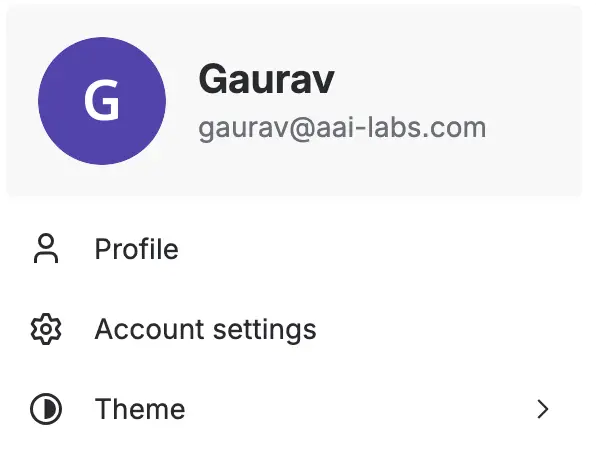
1 // Account settings. 
2 // Security. 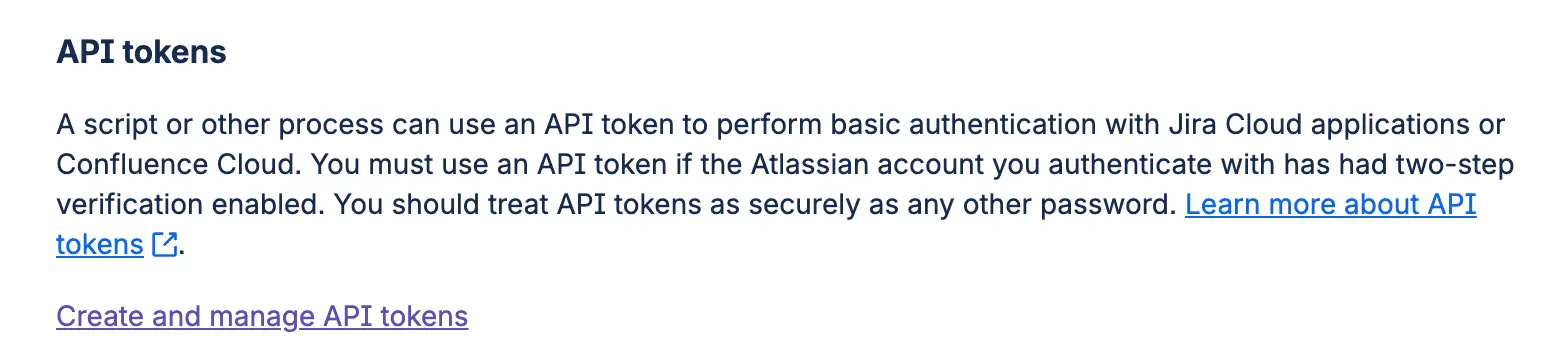
3 // Create and manage API tokens. - 05.A3
Atlassian // Choose the matching token type.
Select a standard or scoped token, then choose the same Authentication Type in Agent Barn.
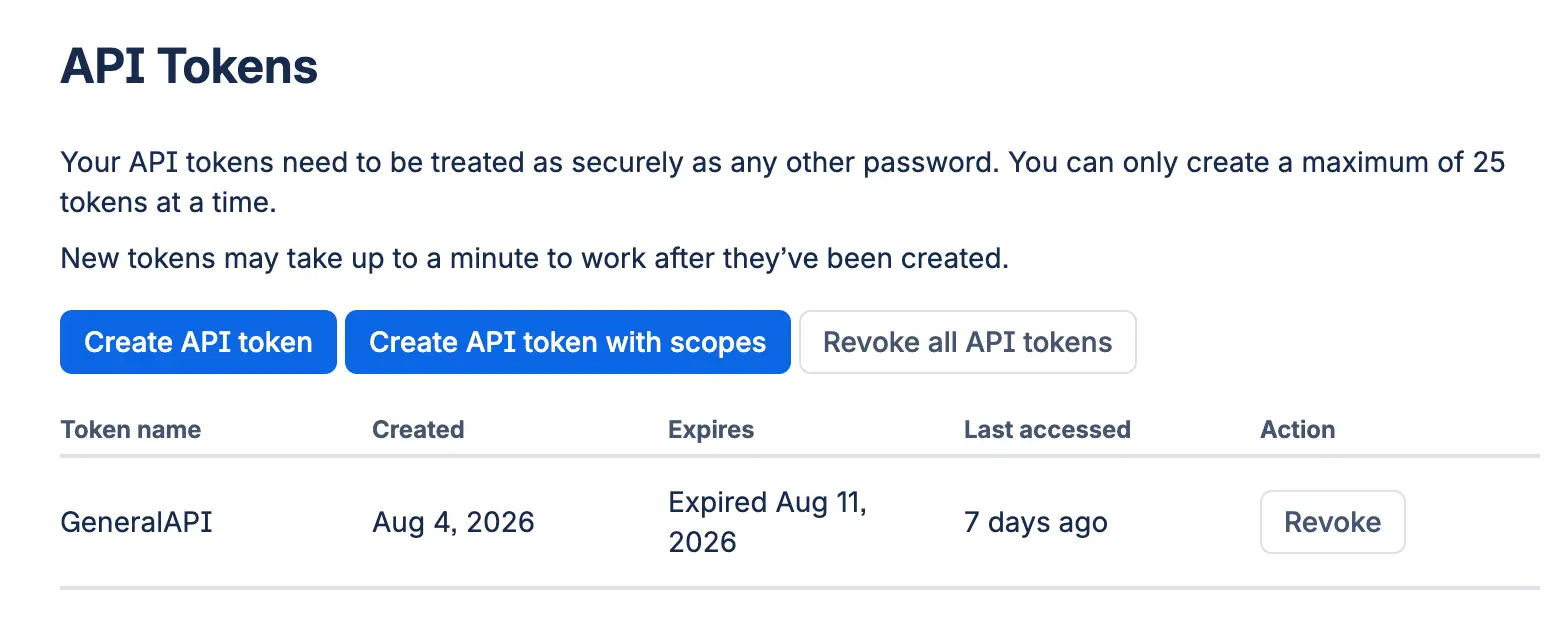
Choose standard or scoped. - 05.A4
Atlassian // Create and copy the token.
Name it
AgentBarn_Recipe, choose an expiration date, create it, and copy it.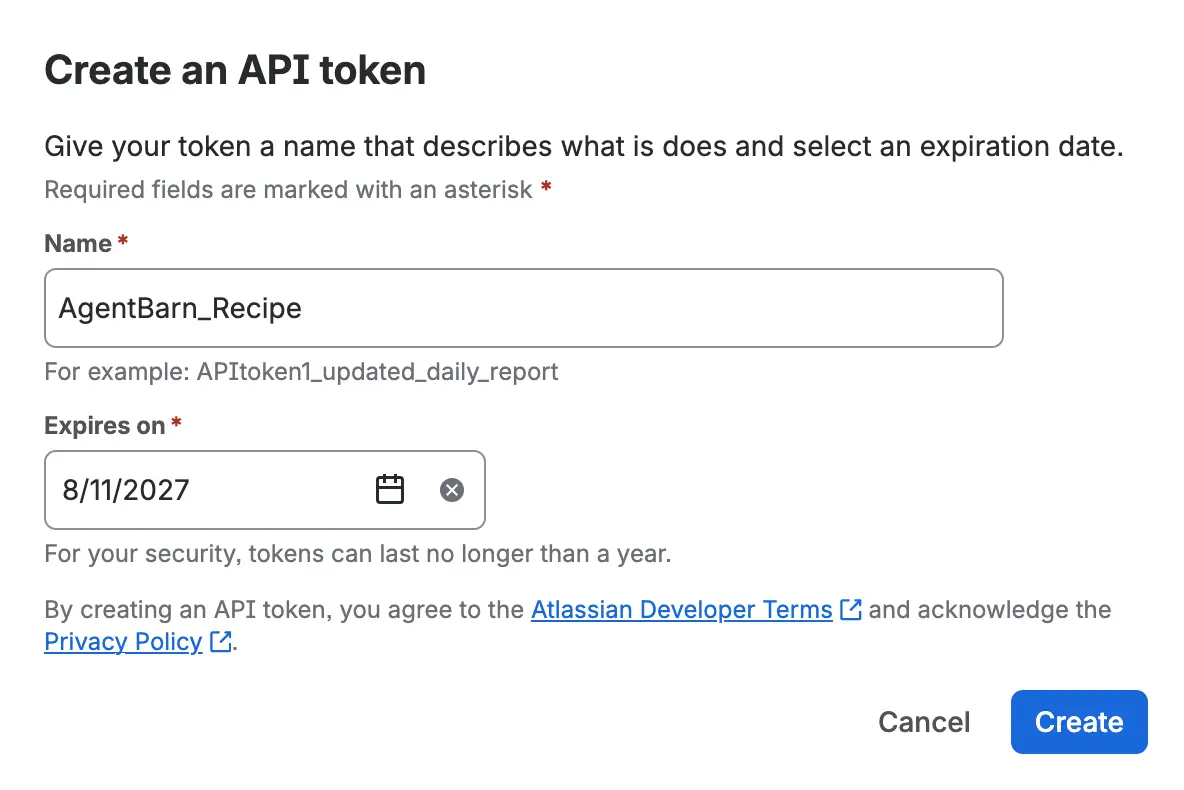
Name, expiration, Create. 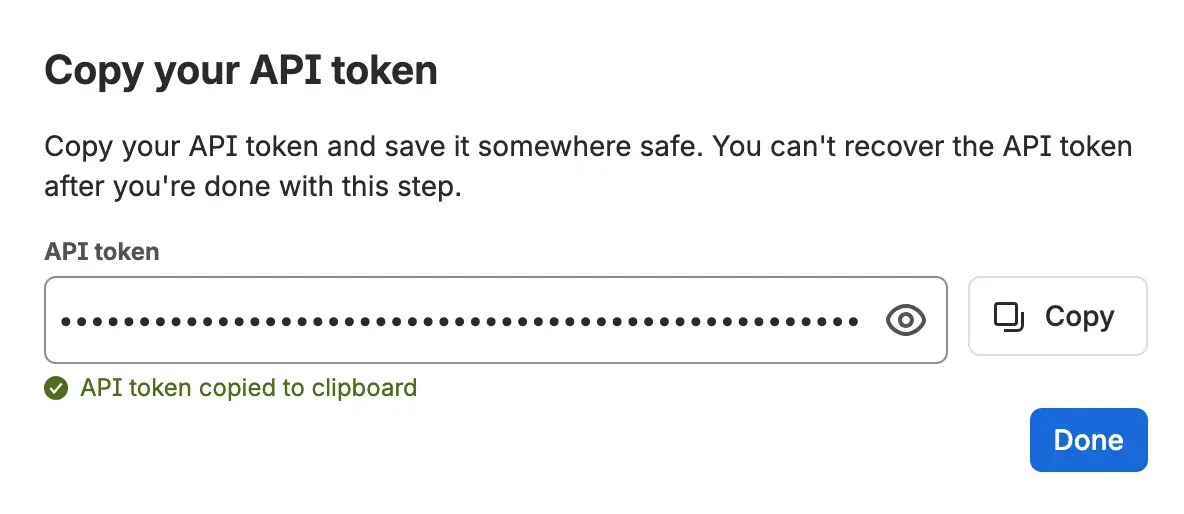
Copy the token. - 05.A5
Atlassian // Complete the credential.
SITE URLAtlassian site origin.
AUTHENTICATION TYPEMatch the token type.
EMAILAtlassian account email.
API TOKENPaste the copied token.
The same Atlassian credential can connect Jira and Confluence when the account can access both.
- 05.A6
Atlassian // Validate the product boundary.
Test one permitted Jira project or Confluence space for every connected product, then confirm a location outside the configured boundary remains unavailable.
- 05.S1
Source control // Choose GitHub or Bitbucket.
Read merged pull requests, diffs, labels, and linked engineering context.
- 05.G1
GitHub // Create a Classic PAT.
Open GitHub Personal access tokens ↗, select Tokens (classic) → Generate new token, add a note, and choose an expiration date.
- 05.G2
GitHub // Select the scopes.
REPORepository access.
READ:ORGOrganization membership.
READ:USERUser profile data.
- 05.G3
GitHub // Copy and enter the token.

Copy the generated value; the token is blurred here. 
Owner / Org appears before the slash. PERSONAL ACCESS TOKENPaste the copied value.
OWNER / ORGValue before the slash.
REPOSITORIESAdd each permitted repository.
- 05.G4
GitHub // Validate the repository boundary.
The Classic PAT
reposcope is broad. Test one repository in the configured list and confirm a repository outside the configured list remains unavailable. - 05.B1
Bitbucket // Record the workspace ID.
In
bitbucket.org/agentbarn/workspace/overview,agentbarnis the workspace ID. - 05.B2
Bitbucket // Create the API token.
Open Account settings → Security → Create and manage API tokens. Choose Create API token with scopes, select Bitbucket, and add the required scopes.
READ:USERRead the account.
READ:WORKSPACERead the workspace.
READ:REPOSITORYRead repository content.
READ:PULLREQUESTRead pull requests.
- 05.B3
Bitbucket // Complete the credential.
WORKSPACEWorkspace ID.
REPOSITORIESPermitted repository names.
EMAILAtlassian account email.
API TOKENBitbucket-scoped token.
- 05.B4
Bitbucket // Validate the repository boundary.
Test one repository in the configured list and confirm a repository outside the configured list remains unavailable; verify pull-request write access only when this recipe posts review comments.
- 05.Z
Test every connected skill.
Run one expected action for each selected integration before launch.
Verify the Telegram recipe.
Test the bot, chat rules, and connected integrations together.
- 01
The token connects to
@AgentBarnDocumentationBot. - 02
A permitted private chat or group receives a response.
- 03
A chat outside the selected access rule receives no response.
- 04
Group Privacy matches the recipe's message needs.
- 05
Each required skill completes one representative action.
- 06
The approval mode and response detail are correct.
- 07
The configured trigger runs: A pull request is merged or a scheduled digest is due.
- 08
The result follows Detect change → Draft update → Check scope → Share digest.
- 09
The review rule is applied: Review generated documentation before treating it as the final record of a product or engineering decision.
Documentation Agent is ready for a controlled pilot.
Start with a narrow audience and reversible work, then widen access after observing representative tasks.
Return to recipes →